Home
Settings
The hamburger menu opens plugin settings and project-level actions. Use it for history, connection settings, SemanticSearch status, and MCP project targeting.
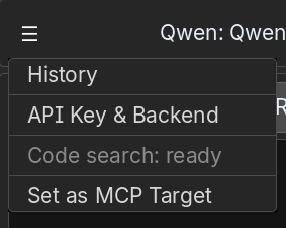
API key and backend URL
Open API Key & Backend, copy your API key from the Fennara dashboard, and paste it into the API key field.
Leave the backend URL as it is unless Fennara support asks you to change it.
History
History opens previous plugin conversations so you can return to earlier work. For details, see History.
Set as MCP Target
Use Set as MCP Target when you want supported MCP apps to point at the currently open Godot project. This tells local MCP tools which Godot project should receive tool requests.
This matters when more than one Godot project is open. The MCP app can see connected projects, but the active target decides which project receives file, scene, and diagnostic tool calls.
You need an API key with an active trial or Pro subscription before MCP tools can run. If the local MCP bridge is not connected yet, Fennara will show an error in chat.
SemanticSearch status
The menu shows SemanticSearch status for the current project. This row is informational, so it is disabled and cannot be clicked.
It may say not indexed, waiting for device, indexing, pending, partial, ready, ready (trial), ready (Pro), trial active, upgrade to Pro, or project limit reached depending on the account and indexing state.
If SemanticSearch is ready, Fennara can use indexed project code when a request needs it. If it is pending or indexing, the project is still being prepared.
For details, see SemanticSearch. For access rules, see Pricing and credits.