Home
Chat
Use chat for normal Fennara requests inside Godot.
Chat surface
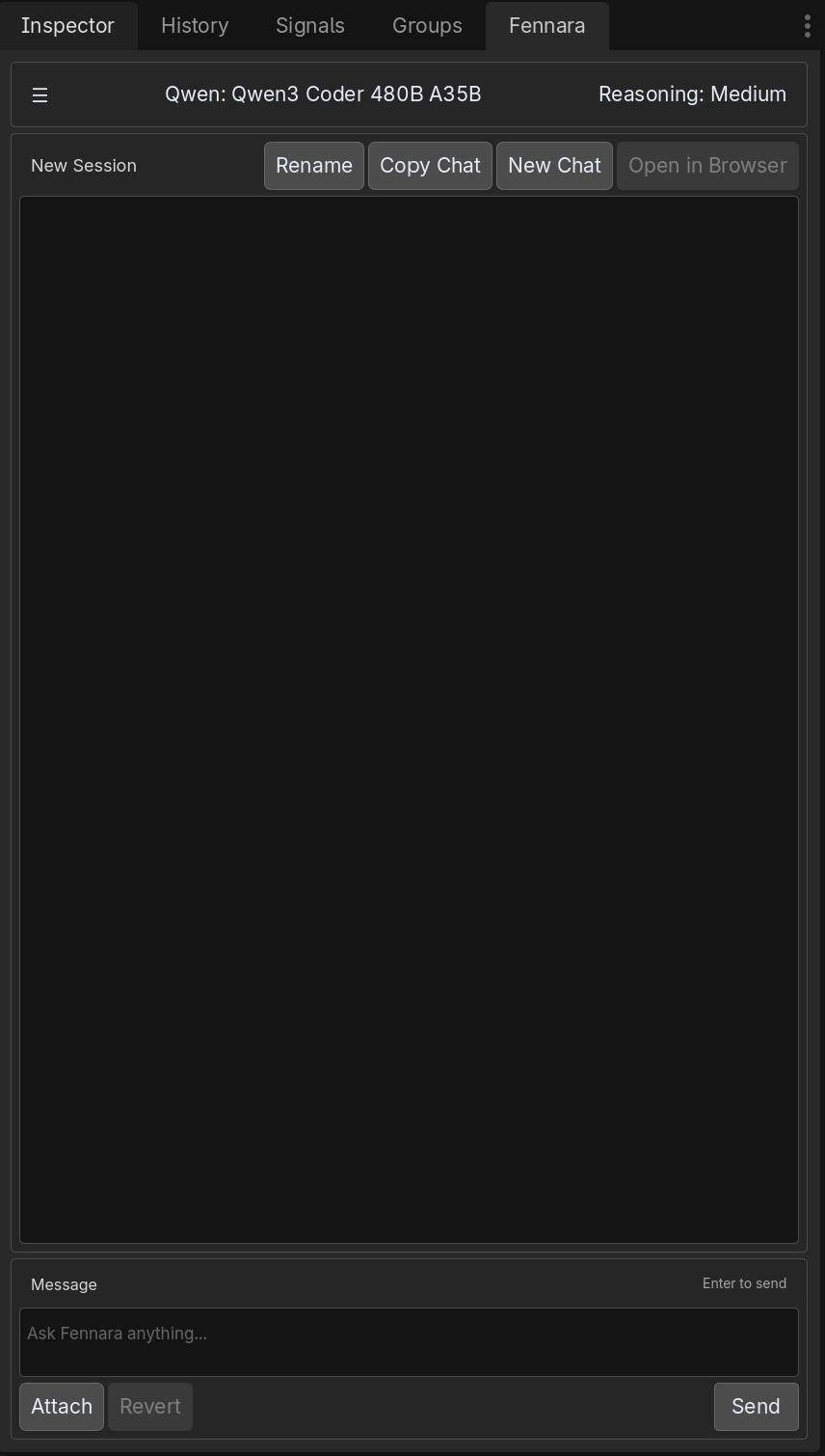
The chat page is where you send messages, review responses, and watch tool activity. It includes the conversation, status cards, tool result cards, and the message composer.
Top controls
- ☰ Menu opens the Settings panel with API key, backend URL, SemanticSearch status, and Set as MCP Target.
- Model name is a button that shows the current model. Click it to switch models. See Models for details.
- Reasoning is a button that shows the current reasoning level. Click it to change how much thinking effort the model uses. See Models for details.
- Rename changes the current chat title.
- Copy Chat copies the conversation for sharing or debugging.
- New Chat starts a fresh plugin session.
- Open in Browser opens the current conversation on the Fennara website history page.
Send a message
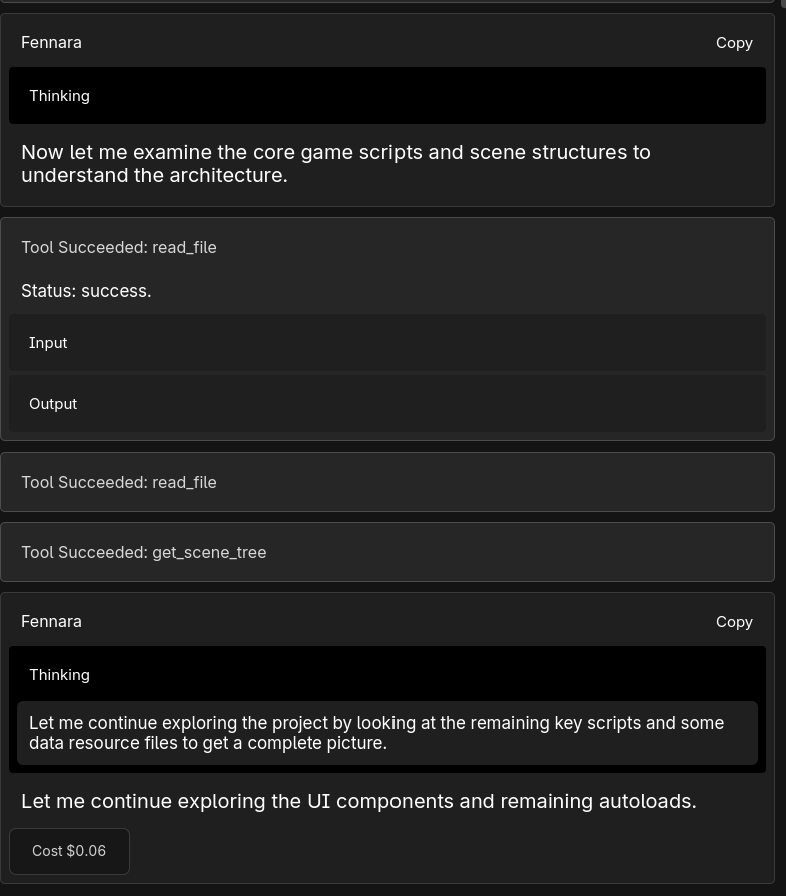
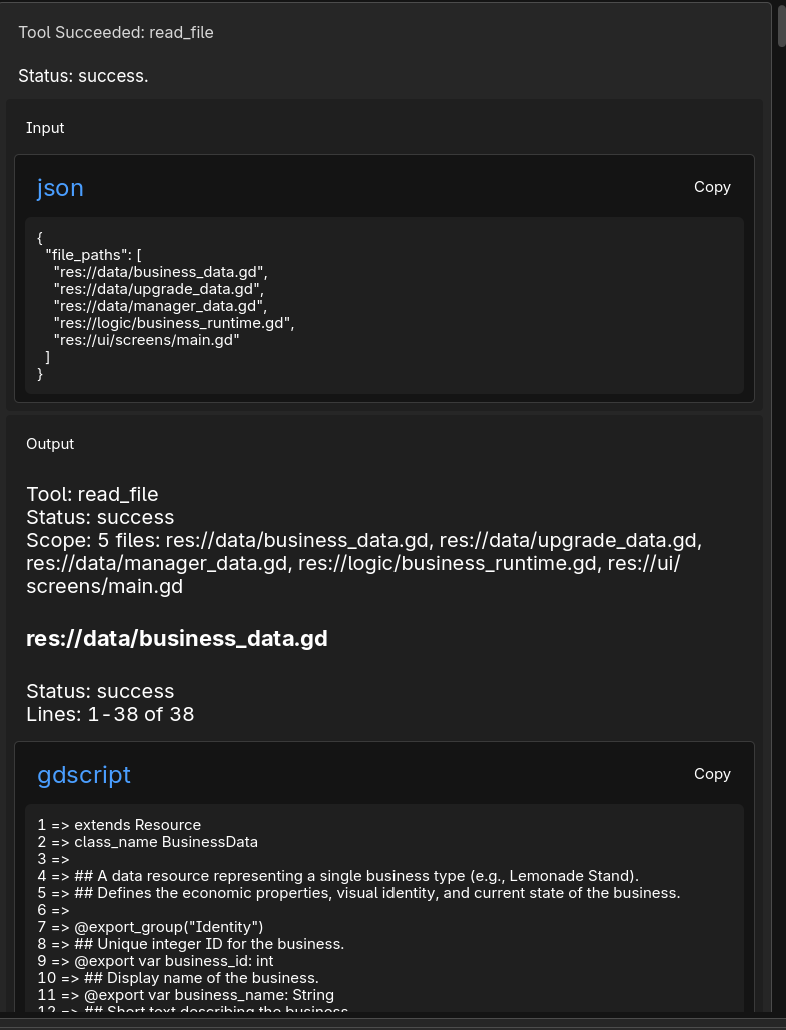
Type in the message box and press Send or Enter to send. While a turn is running, Send is disabled and pressing Enter will not send a new request. Fennara may show thinking, status cards, tool cards, and cost badges while the request runs.
For how those costs appear on your account, see Pricing and credits.
Tool and status cards
While Fennara works, the chat shows live status and tool cards so you can follow what is happening.
Thinking is a toggle button. Click it to expand or collapse the model's reasoning text. Cost badges show token usage after each step. The Usage page groups those requests by agent type; see Agent types.
Tool Succeeded and Tool Failed are toggle buttons. Click them to expand or collapse the tool card. Inside an expanded card, Input and Output are also toggles you can click to show or hide the tool's request and response.
Attach images
Use Attach to add an image to the next message. This is useful for UI bugs, screenshots, visual references, layout issues, error dialogs, or anything Fennara should look at.
Attach does not attach project files or scenes. For project files, ask Fennara to inspect them by path or use a tool-backed request.
Revert changes
Use Revert to undo project file changes from the previous request snapshot. For details, see Revert.
Composer buttons
- Message is where you type the next request.
- Attach adds an image to the next request.
- Revert restores project files from the previous request snapshot when available.
- Send starts the request.